
You can embed your Lounges.tv event or video directly on your own website, making it easier for your audience to discover your content, buy tickets and watch your streams.
The Lounges.tv embed creates a promotional card for your event or video on your website. Viewers can see key event information and choose to buy a ticket, join a live stream or watch your content. They'll then be taken securely to Lounges.tv to complete their purchase or access the stream.
What can I embed?You can embed:
- Paid live events
- Free live events
- Upcoming live events
- Previous live events and rewatches
- Video on demand (VOD)
- Log in to your Lounges.tv Creator account.
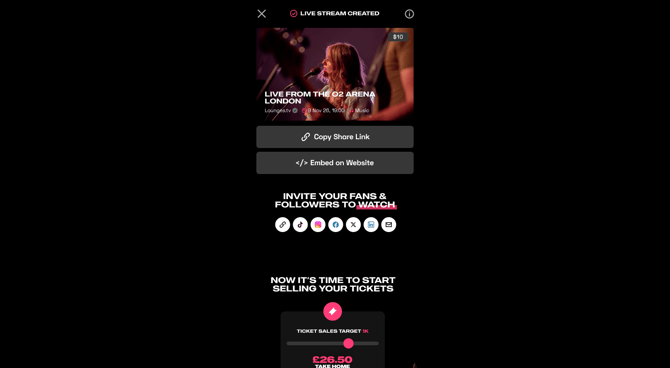
- Go to your Dashboard and open the event or video you would like to embed.
- Select Embed on Website.
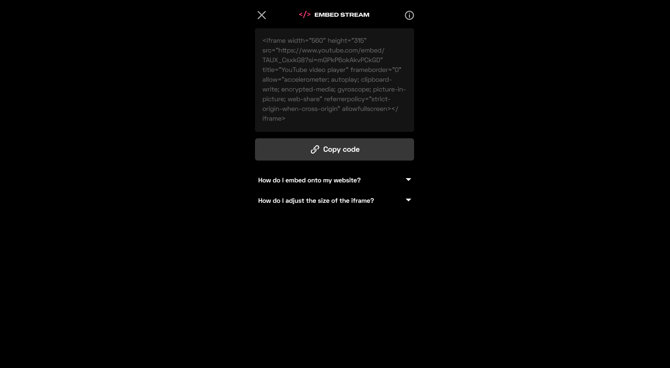
- On the Embed Stream page, you'll see a unique embed code for your content.
- Select Copy Code.
- Go to your website editor or CMS.
- Add an HTML / Embed / Custom Code section where you would like the Lounges.tv content to appear.
- Paste the embed code you copied from Lounges.tv.
- Save or publish the changes to your website.
Your Lounges.tv event or video should now appear on your website.
Important: The exact way you add custom HTML or embed code will depend on the website platform you use. If you're unsure where to paste the code, check your website provider's instructions for adding HTML or iframe embed code.
What will viewers see?
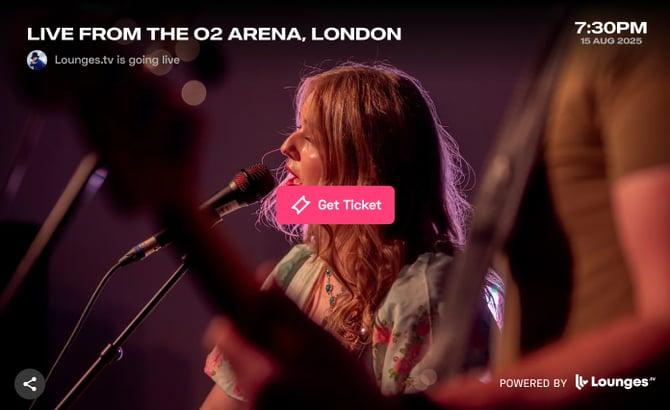
The embedded card is designed to automatically display the relevant information about your content, including:
- Event or video title
- Creator or artist name
- Event status
- Event date and time, where applicable
- Event thumbnail
- A main action button
- A Share option
- Powered by Lounges.tv
The information displayed will automatically reflect the current status of your event.
For example, an upcoming event may show that you're going live, while an event currently taking place will show that you're live now.
What happens when someone clicks the button?The button shown to your audience automatically changes depending on the type and status of your content.
Viewers may see:
- Buy Ticket – for a paid live event
- Get Ticket – for a free live event
- Join Stream – when the event is live
- Watch – for previous live events, rewatches and video on demand
When a viewer clicks the button, the full Lounges.tv stream page will open in a new browser tab.
For paid content, viewers will be taken directly to the stream page with the checkout option ready so they can purchase access.
Can viewers share my event from the embed?Yes. Viewers can select Share from the embedded card to open the sharing options without leaving the embedded experience.
This gives your audience another easy way to share your event or video with others.
Will the event time be correct for viewers in other countries?Where possible, event times are displayed according to the viewer's local time zone and local date preferences.
This means your international audience can see the event time in a format relevant to their location.
Which website platforms can I use?The Lounges.tv embed has been operationally tested with:
- WordPress
- Shopify
- Wix
- Squarespace
It can also be used on websites that allow iframe or custom HTML embed code.
Can viewers watch the stream directly inside the embed?The embed is primarily designed to promote your Lounges.tv content and direct viewers to the full Lounges.tv experience.
When a viewer selects Buy Ticket, Get Ticket, Join Stream or Watch, Lounges.tv will open in a new browser tab where they can purchase or access the content.
I'm having trouble adding the embed to my websiteFirst, check that:
- You copied the complete embed code from Lounges.tv.
- Your website allows custom HTML or iframe embeds.
- The code has been added to an HTML/embed block rather than a standard text block.
- You have saved or published your website changes.
- Try previewing or viewing the published page rather than only viewing it inside your website editor.
If you're still having trouble, contact Lounges.tv Help & Support and let us know which website platform you're using. If possible, include a screenshot of what you're seeing so our team can help.